




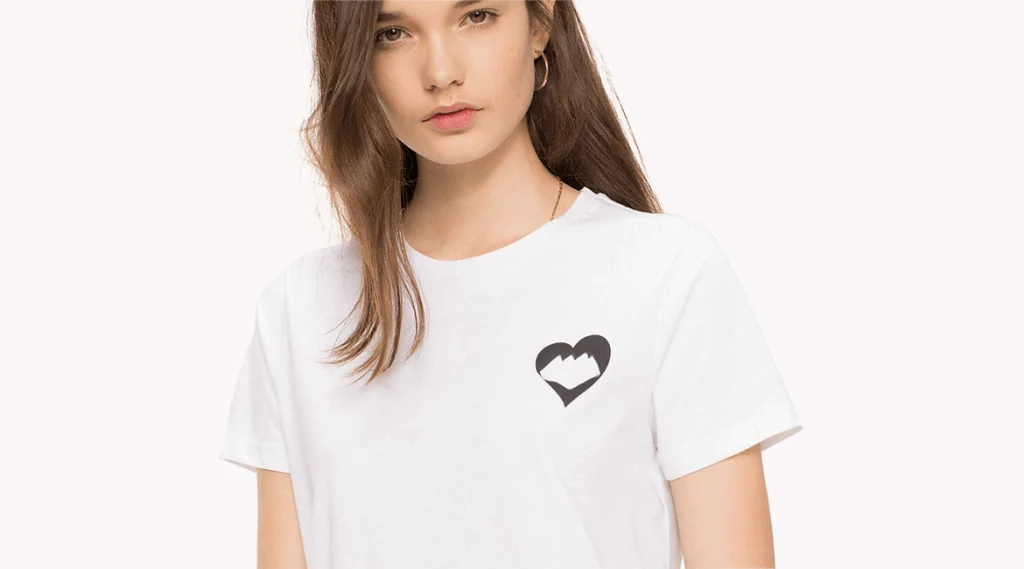
If you want to customize workwear , casual wear, or to promote your business or a sporting event , the size of your logo is crucial. Here's a short guide that also includes a technical section on creating a file for printing. If you follow it carefully, you'll be able to create a perfect file in just a few minutes! What's the right size for printing a small logo on the left chest? For a men's or unisex t-shirt, you can go up to 35 cm wide and 38 cm long. If the t-shirt is for women, it's advisable to reduce the size of the logo, as it could distort on the chest: the optimal size is 22 x 22 cm. How can you ensure the logo's size is adequate for placement on the left chest? Get out a ruler, set square, or tape measure and measure the size of the logo you'd like directly on the garment. You can also do this by creating a graphic preview, which takes into account both the size of the garment and the size of the logo, so that the graphic rendering is as realistic as possible. Does your event have many sponsors and do you need to print multiple logos? Rule no. 1: The logos cannot be too small or have lines that are too thin. For an acceptable print result, the strokes and characters of your logo cannot be smaller than 1 mm. Rule no. 2: If there are many sponsors and their logos are made up of different colors, request authorization to screen print them in one color (black or white): from a financial standpoint, the savings will be significant. How to create the file from an image you already have? Here is our very detailed guide to creating a file with Photoshop. 1. Open Photoshop and click on File > New to create a new file 2. Set the following parameters: Size A4 Resolution: 300 Pixels/inch (if the resolution is 300 pixels per inch or higher, the print quality will be very high and individual pixels will be indistinguishable) Color mode RGB – 8 Bit Background content: Transparent 3. Insert your file by clicking on "File>Place Embedded" or drag the file directly into the work area. 3.1 Click on "View > Rulers" in the top menu bar (only if they are not already present); by right-clicking on the rulers set "Pixels" as the unit of measurement 3.2 Click on the layer containing the logo or image 3.3 Click on Edit > Free Transform (⌘T) in the top menu bar 3.4 Point the mouse cursor to a corner of the image and, holding down SHIFT, proceed to resize the logo/image to the desired size: a heart-sized print usually has dimensions ranging from a minimum of 5×5 cm to a maximum of 8×8 cm. If you want pinpoint accuracy , click "Image > Image Size": this will show you the actual dimensions of your logo, both height and width. Change the unit of measurement to check the dimensions in mm, and if they're not accurate, change them directly in the appropriate boxes.
4. Next, from the top menu, click "Image > Crop" and click "Transparent Pixels." Make sure all the cropping options (top, bottom, right, left) are enabled, then click OK.
By following this procedure, have you created a file the size the image will have once printed on the fabric, i.e. at a 1:1 scale? Remember that you can skip step 3 and go directly to step 4 : first trim the logo on all sides, then click on “Menu>Image>Image Size” and finally indicate the desired dimensions (don't forget to check that the "Resample" checkbox is active). 5. All you have to do is save your file!
To save, click File > Save As. Choose the PNG format and Save! Done! Now you're ready to create your file and start working on your print project right away! If you'd like your file to be placed on the heart side, simply indicate this in the appropriate notes during the file upload process after placing your order. On our website , you'll find tons of T-shirts , polo shirts , and jackets ready to be customized. We're waiting for you at burger-print.nl !

What is custom workwear: branding and safety?
What does custom workwear mean? Discover types, branding benefits, safety compliance, printing techniques, and mistakes to avoid.